With the release of Engine DJ 4.6 and Serato DJ Pro 4.0.3, users of supported Engine DJ hardware now have access to OmniSource, a powerful feature that allows dynamic, per-deck source control that allows DJs to utilize Engine OS and Serato DJ Pro from the same performance surface at the same time. If you're utilizing SoundSwitch & Engine Lighting in these deployments, it's crucial to set your DMX signal paths correctly to maximize the modularity of your lightshows across both performance interfaces, and this guide serves to show you the ropes.
TABLE OF CONTENTS
- How should I set up my DMX interface(s) and signal path?
- Setup with SoundSwitch Control One
- Utilizing Third-Party DMX A/B Switchers for Dual Interface connections
How should I set up my DMX interface(s) and signal path?
The key detail to understand when routing lighting in an OmniSource-enabled rig is that both Engine OS and Serato will require their own DMX interface connection, either via a dual-USB device like the Control One, or two separate DMX interfaces. You cannot run your autoscripted lightshows in both Engine OS and Serato from a single interface without manually switching the interface or DMX connection between your computer and your OmniSource-supported controller. Below, we'll explore some strategies to implement this intuitively using both a single-interface and dual-interface connection
Setup with SoundSwitch Control One
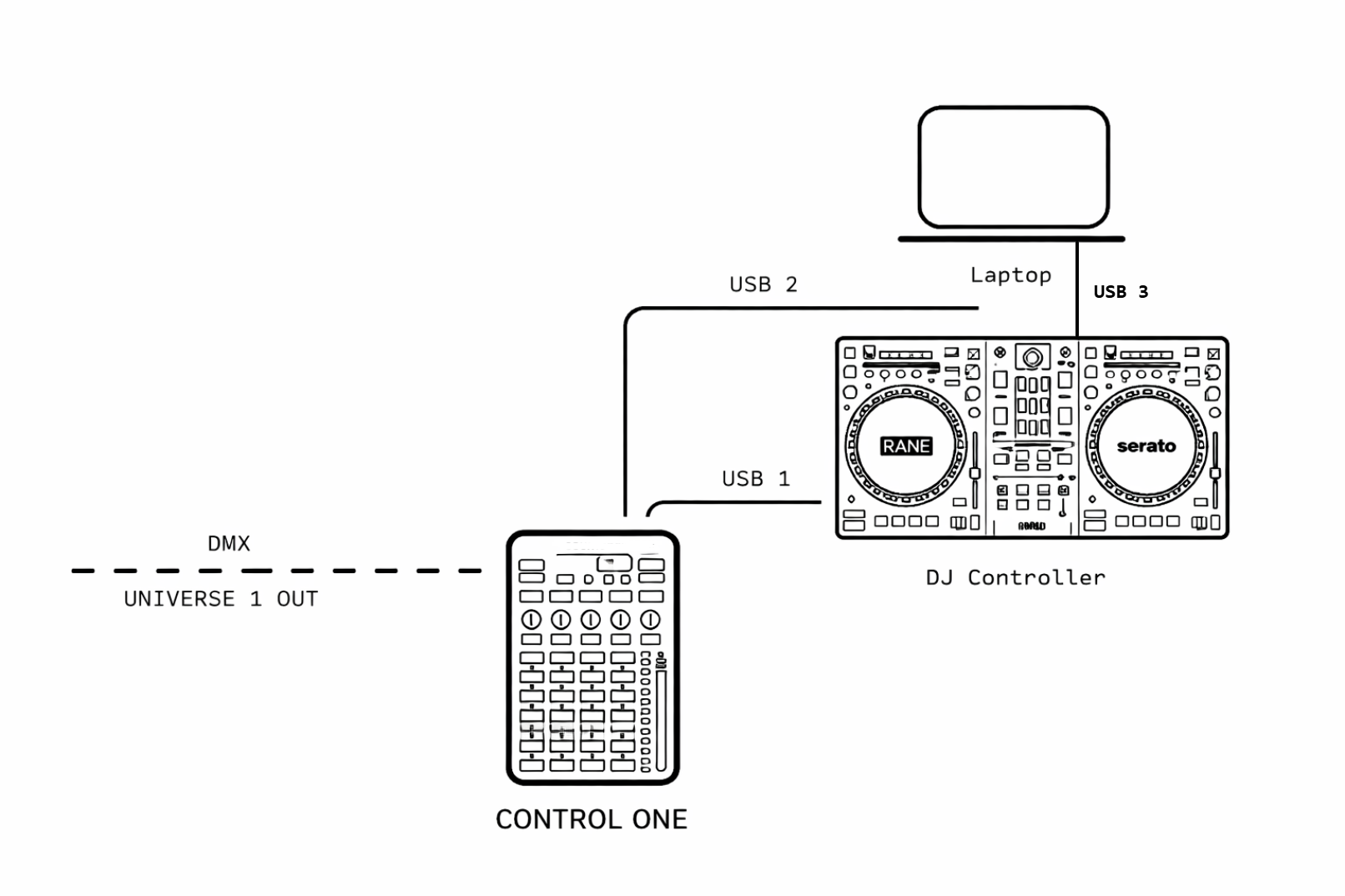
The Control One's onboard USB output toggle makes it the best device for seamless source switching and is the only device that allows the utilization of autoscripted tracks via both Engine Lighting and SoundSwitch desktop in the same performance rig without a second interface. Please note, however, that this setup is advanced in nature and requires a good working knowledge of Engine and Serato library management and SoundSwitch's source routing.
To utilize this setup, you'll need to prepare and load your project instances via the following steps:
- Prepare your project via SoundSwitch Desktop and autoscript your desired tracks in your Serato DJ Pro library
- Import your Serato library into Engine Desktop, which will now include the necessary SoundSwitch_ID metadata to carry your autoscripts.
- Sync your project and playlists via the Sync Manager to the source drive you will use with your Engine DJ hardware: Rane SYSTEM ONE | Introduction to Engine Lighting
- Connect your source drive to your Engine Hardware then route your USB cables via the USB1 and USB2 outputs in accordance with the diagram above
You are now ready to utilize autoscripts via both sources from your Control One. In order to switch between Engine Lighting and Serato, simply toggle between USB1 & USB2 on the Control One in accordance with whichever source you are using on the active deck.
Please note: This setup limits the viability of crossfader mixing with your lightshows, since Engine Lighting and Serato DJ Pro are not directly talking to each other. As such, we strongly recommend using 'Upfader Only' as your fader preference in this setup.
Utilizing Third-Party DMX A/B Switchers for Dual Interface connections
One present limitation of SoundSwitch with OmniSource setups is the fact that you cannot directly pipe DMX information between Serato DJ Pro and Engine Lighting. This means that, without any third-party hardware, a dual-interface setup would require you to either manually switch the main DMX lead from the interface connected to either source device or bring two identical DMX lighting rigs to your gigs and route them separately to each source device.
This problem is solved by implementing a DMX A/B switcher in your chain connected to the main DMX leads from both source devices. With this, you can connect a single DMX daisy chain to the switcher, then use the switch to toggle between your computer and Engine DJ hardware as the desired DMX source when utilizing OmniSource to use both programs concurrently. In this setup, you'll simply have your project running on both SoundSwitch desktop and Engine lighting concurrently with two DMX interfaces (two DMX Micros, DMX Micro/Control One) connected to their respective source devices. If you load a track in Serato and perform using OmniSource, simply toggle the DMX switcher to the signal path connected to your computer running Serato and vice versa.
Beyond that, the project preparation steps are virtually identical to those outlined in the Control One strategy above. The only difference being that the switch fulcrum moves from the USB toggle on the Control One to the DMX toggle on the third-party A/B switcher.
Need help? Feel free to reach out to us at soundswitch.com/support and we'll be happy to assist!
Was this article helpful?
That’s Great!
Thank you for your feedback
Sorry! We couldn't be helpful
Thank you for your feedback
Feedback sent
We appreciate your effort and will try to fix the article