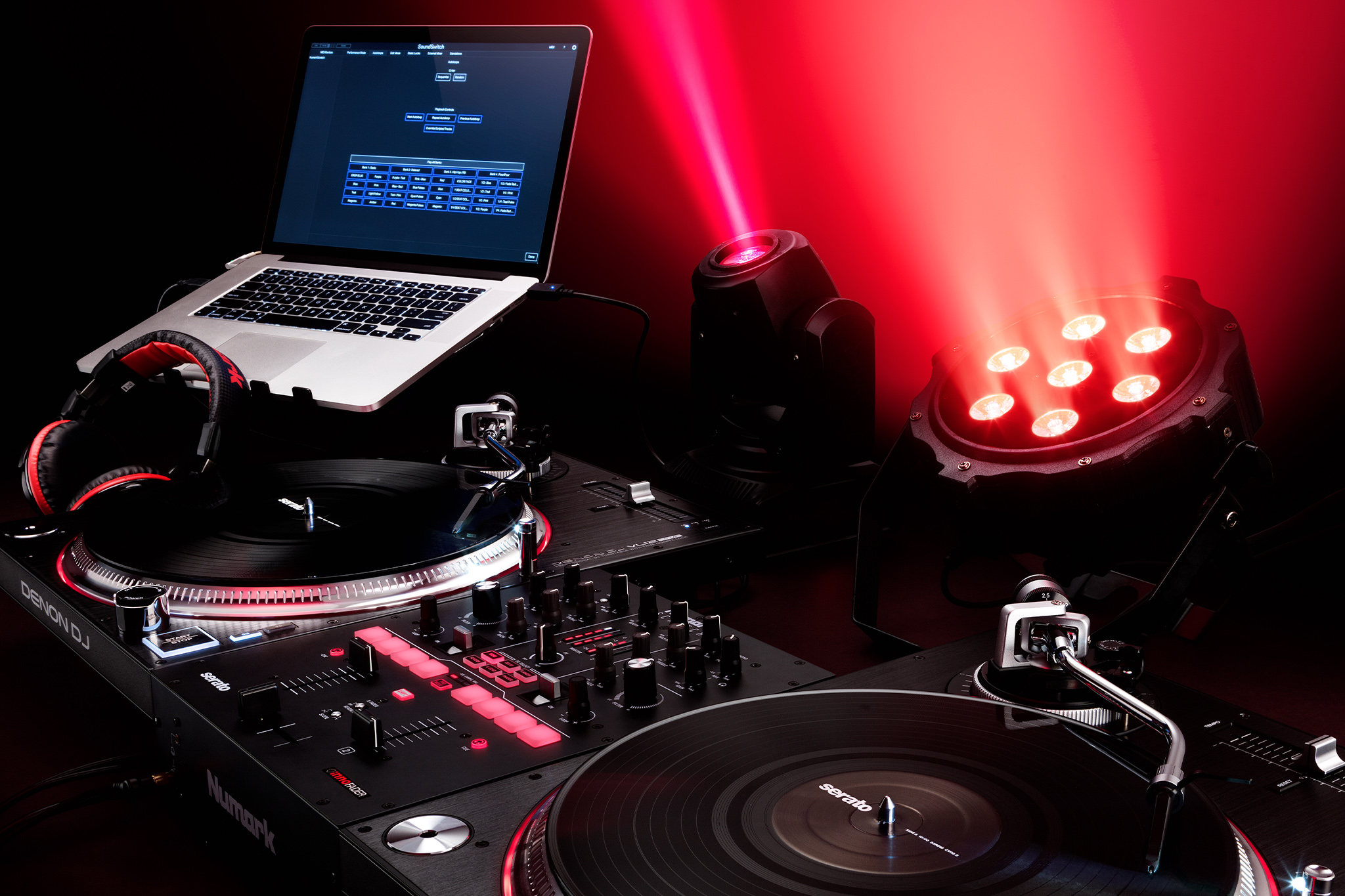
Static Looks have received a significant update in SoundSwitch 2.11, giving you more power, more flexibility, and more creative control during your performances. Here's a full breakdown of what's new.
Video Tutorial
To help you get started, we recommend watching our video tutorial, which provides a visual guide on the new Static Look features. You can find the video here:
What's New in SoundSwitch 2.11? | Static Look Improvements
128 Static Looks Across Four Banks*
The Static Look limit has increased from 32 to 128, organized into four banks of 32. Each bank can be renamed to suit your workflow.
*The new Static Look improvements introduced in SoundSwitch 2.11 are not available for Engine Lighting users at the time of the SoundSwitch 2.11 release.
Support for these enhanced Static Look features, including the expanded Static Look banks and new layering behavior, will be added in a future Engine DJ release.
Until that Engine DJ update is available, Engine Lighting users will continue to have access to the existing Static Look functionality supported by their current Engine DJ version.
Trigger Multiple Static Looks at Once
You can now activate multiple Static Looks simultaneously. Each Static Look operates on a per-fixture, per-parameter priority system, if two Static Looks both target the same fixture, the most recently triggered one takes priority for any parameters it defines. Parameters set to Thru pass through from your scripted track or Autoloop, giving you precise control over exactly what each Static Look affects.
Parameter Independence
Every parameter in the Static Look editor, including Color, Intensity, Position, Movement Effects, Strobe, and Attributes, now includes a Thru option. Set any parameter to Thru and that Static Look leaves it untouched, letting your scripted track or Autoloop continue controlling it. This means you can trigger a single parameter, like a gobo or a position, without affecting anything else.
Movement Effects
Static Looks now support Movement Effects per fixture. Assign a shape pattern, such as Circle, Figure 8, or Scan Horizontal, to any moving head directly within the Static Look editor. Movement Effects in a Static Look take priority over any movement in your scripted track or Autoloop while that Static Look is active.
Fade In and Fade Out
Each Static Look now supports configurable Fade In and Fade Out times, independently set per Static Look, with a custom value up to 30 seconds. Intensity, color, and position all fade smoothly, while Attributes, Strobe, and Movement Effects snap instantly for precise control.
Active Static Looks Pane
A new Active Static Looks pane on the Static Looks page shows you every currently active Static Look in priority order, with the most recently triggered at the top. From this pane you can reorder, mute, deactivate, or clear all Static Looks, without needing to navigate between banks.
Re-arranging Static Looks
Static Looks can now be freely re-arranged within and between banks using drag and drop. Moving a Static Look preserves all of its contents and settings.
Copy and Paste
Static Looks now support copy and paste via the right-click context menu. Copy any existing Static Look and paste it into any available empty slot across your four banks, a fast way to create variations without rebuilding from scratch.
Control One Support
The Control One now shows an indication for active Static Looks, so you can see at a glance what's running during your performance.
Need Help?
If you have any questions about the new Static Look features, our support team is here to assist you. Please visit the support home page and click 'Contact Support'.
Was this article helpful?
That’s Great!
Thank you for your feedback
Sorry! We couldn't be helpful
Thank you for your feedback
Feedback sent
We appreciate your effort and will try to fix the article